
BEHAVIOUR YOU MAY EXPERIENCE:
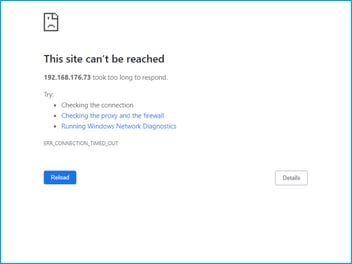
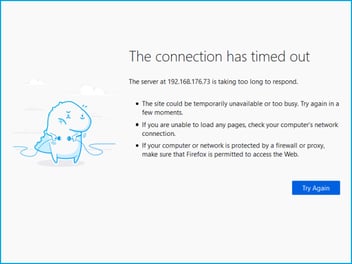
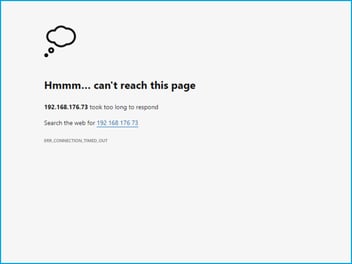
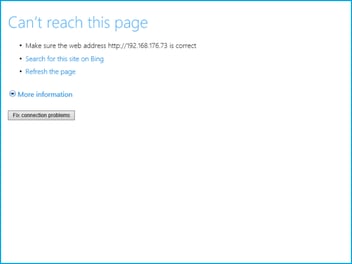
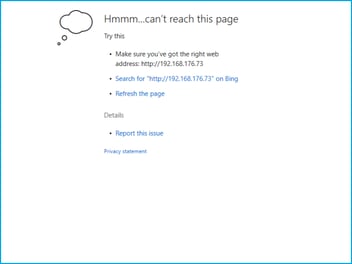
You are shown an error message when you visit http://10.11.12.1. The error message is:
- 'This site can't be reached' in Chrome
- 'The connection has timed out' in Firefox
- 'Hmmm... can't reach this page' in Edge.
1. MICRO-I IS TURNED OFF
It may be that your Micro-I turned off.
Resolve the issue
1. Turn on your Micro-I
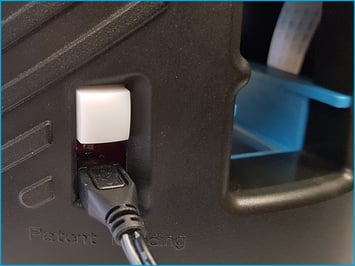
- Press the power button on your Micro-I for two seconds to turn it on:
- the power button's back-light will flash red and green before settling on green
- your Micro-I's internal light will glow yellow and flash white before settling on solid white when ready.
2. Connect your computer to your Micro-I
- Connect using your Micro-I's mobile hotspot:
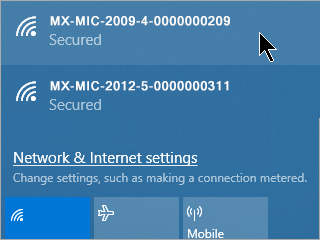
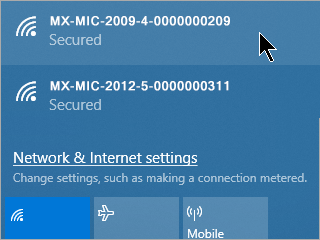
- Select the Wi-Fi settings icon from the system tray on your computer.
- Note down the network your computer is currently connected to.
- Select your Micro-I (e.g. MX-MIC-XXXX-X-XXXXXXXXXX).
- The serial number of your Micro-I is printed on the bottom of your Micro-I.
- Enter your Micro-I's password and select 'Connect'.
- The password of your Micro-I is printed on the bottom of your Micro-I.
- Select the ‘Connect’ option.
- Wait for your computer to connect to your Micro-I.
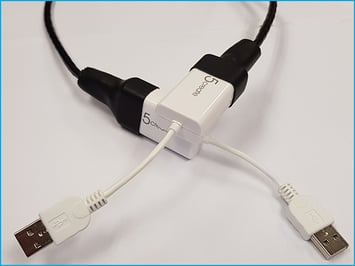
- Or, connect using the Micro-I USB cable:
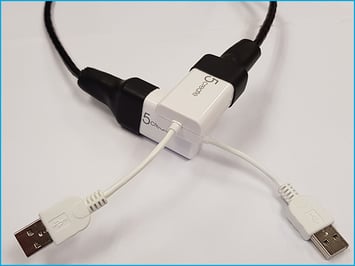
- Connect one end of the Micro-I USB cable to your computer and the other end to your Micro-I.
3. Log in to your Micro-I
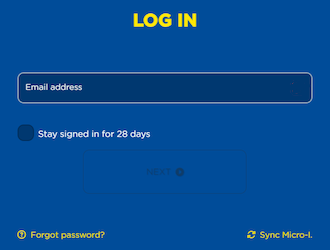
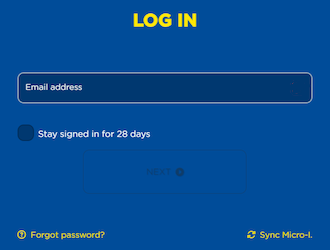
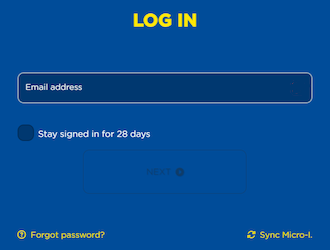
- Visit the FECPAKG2 portal on http://10.11.12.1 and log in.
Help Centre
| Please follow a video tutorial on the recommended way to turn on your Micro-I at https://u.fecpakg2.com/hlp-fcpk-trnn. |
2. MICRO-I'S BATTERY CHARGE IS LOW
If the previous solution did not resolve the issue, it may be that your Micro-I's battery charge is too low to power up all the Micro-I's components.
Resolve the issue
1. Turn off your Micro-I
- If your Micro-I is on (i.e. the power button is green), press the power button for three seconds to turn it off:
- the power button's backlight will turn off after flashing red
- your Micro-I's internal light will turn off after flashing amber.
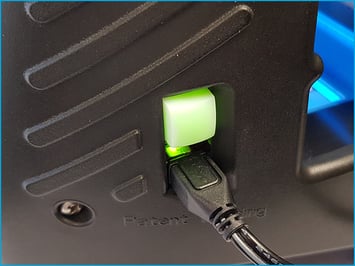
2. Connect your Micro-I to external power
- Plug your Micro-I's power adapter into a wall socket and the other end (Micro-USB) into your Micro-I.
- Turn on the power at the wall socket.
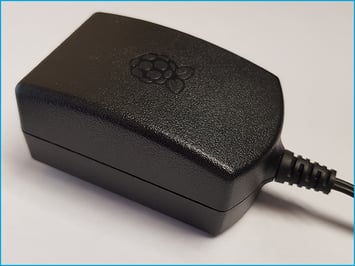
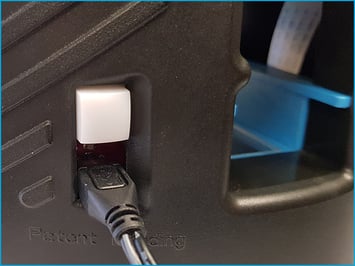
3. Turn on your Micro-I
- Press the power button on your Micro-I for two seconds to turn it on:
- the power button's back-light will flash red and green before settling on green
- your Micro-I's internal light will glow yellow and flash white before settling on solid white when ready.
4. Connect your computer to your Micro-I
- Connect using your Micro-I's mobile hotspot:
- select the Wi-Fi settings icon from the system tray on your computer
- note down the network your computer is currently connected to
- select your Micro-I (e.g. MX-MIC-XXXX-X-XXXXXXXXXX)
- the serial number of your Micro-I is printed on the bottom of your Micro-I.
- enter your Micro-I's password and select 'Connect'
- the password of your Micro-I is printed on the bottom of your Micro-I.
- select the ‘Connect’ option
- wait for your computer to connect to your Micro-I.
- Or, connect using the Micro-I USB cable:
- connect one end of the Micro-I USB cable to your computer and the other end to your Micro-I.
5. Log in to your Micro-I
- Visit the FECPAKG2 portal on http://10.11.12.1 and log in.
3. MICRO-I'S EXTERNAL NETWORK ADAPTER IS FAULTY OR MISSING
If the previous solution did not resolve the issue, it may be that your Micro-I's network adapter:
- is set up incorrectly
- is faulty
- has been removed.
Resolve the issue
1. Turn off your Micro-I
- If your Micro-I is on (i.e. the power button is green), press the power button for three seconds to turn it off:
- the power button's back-light will turn off after flashing red
- your Micro-I's internal light will turn off after flashing amber.
2. Inspect your Micro-I
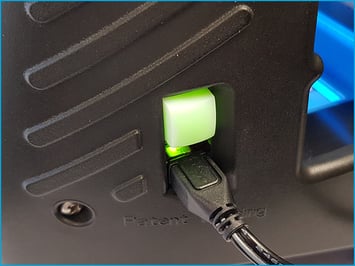
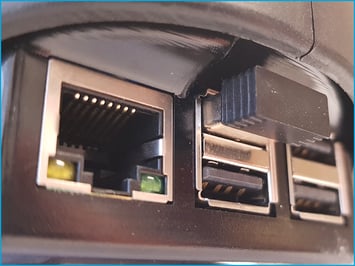
- Look for the small USB adapter plugged in to one of the ports at the bottom edge next to the Ethernet port on the side of your Micro-I:
- if the USB adapter is visible, its settings may have changed, or it may have malfunctioned
- if the USB adapter is not visible, it will have been removed.
3. Prepare your Micro-I for Techion Support to connect to it remotely
- Connect your Micro-I to your network:
- move your Micro-I near to your Wi-Fi router or network access point
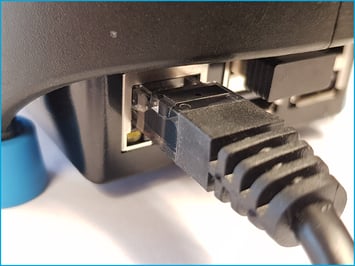
- plug one end of the Ethernet cable into your Micro-I and the other end into your Wi-Fi router or network access point.
- Connect your Micro-I to external power:
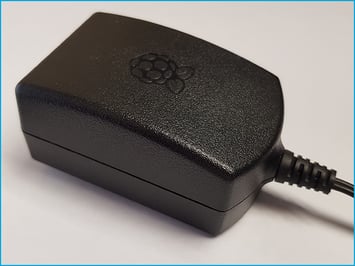
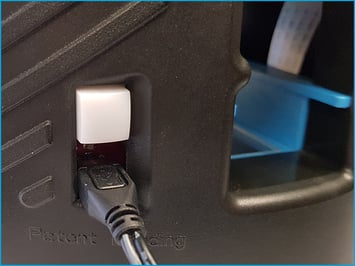
- plug your Micro-I's power adapter into a wall socket and the other end (Micro-USB) in to your Micro-I
- turn on the power at the wall socket.
- Turn on your Micro-I:
- press the power button on your Micro-I for two seconds to turn it on:
- the power button's back-light will flash red and green before settling on green
- your Micro-I's internal light will glow yellow and flash white before settling on solid white when ready.
- press the power button on your Micro-I for two seconds to turn it on:
4. Contact Techion Support
- Please contact Techion Support via https://u.fecpakg2.com/support, and provide:
- the serial number of your Micro-I (i.e. MX-MIC-XXXX-X-XXXXXXXXXX)
- your first and last names
- your email address
- your telephone number
- mention if the USB adapter is visible or not.

5. For Techion Support
WORKAROUND
1. Turn off your Micro-I
- Press the power button on your Micro-I for three seconds to turn it off:
- the power button's backlight will turn off after flashing red
- your Micro-I's internal light will turn off after flashing amber.
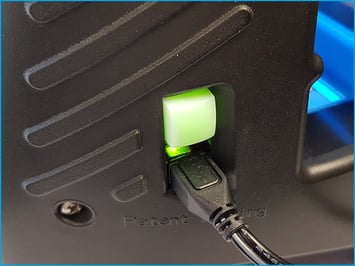
2. Connect your computer to your Micro-I
- Connect using the Micro-I USB cable:
- connect one end of the Micro-I USB cable to your computer and the other end to your Micro-I.
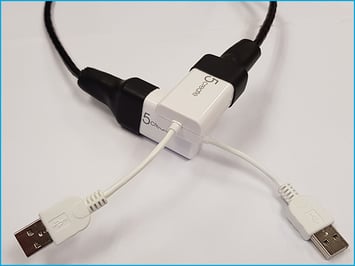
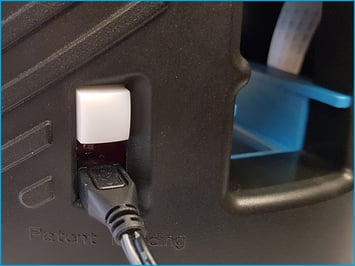
3. Turn on your Micro-I
- Press the power button on your Micro-I for two seconds to turn it on:
- the power button's back light will glow solid green
- your Micro-I's internal light will glow solid white.
4. Connect your Micro-I to the Internet
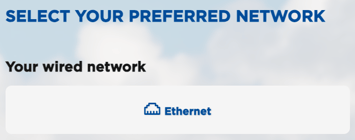
- Open your browser on the computer you used to connect to your Micro-I and go to http://10.11.12.1/scan:
- select 'Ethernet', or scan for a list of available Wi-Fi networks
- select the Wi-Fi network you would like to connect to, which needs to be the same network your computer, laptop or tablet is connected to
- enter your Wi-Fi password and select 'Connect'.
- Wait for your account information to download to your Micro-I.
5. Log in to your Micro-I
- Visit the FECPAKG2 portal on http://10.11.12.1 and log in.
BEHAVIOUR YOU MAY EXPERIENCE:
You are shown an error message when you visit http://10.11.12.1. The error message is:
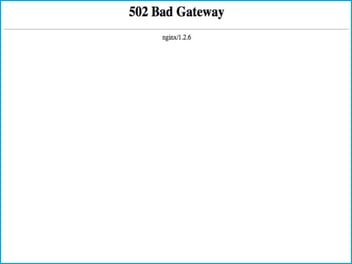
- "502 Bad Gateway"
4. MICRO-I SETTINGS ARE OUT OF DATE
It may be that settings on your your Micro-I are not up to date, or have changed. Techion Support will need to assist in resolving the issue.
Resolve the issue
1. Prepare your Micro-I for Techion Support to connect to it remotely
- Turn off your Micro-I:
- if your Micro-I is on (i.e. the power button is green), press the power button for three seconds to turn it off:
- the power button's backlight will turn off after flashing red
- your Micro-I's internal light will turn off after flashing amber.
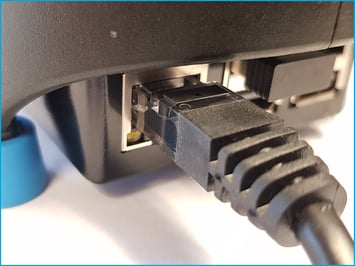
- Connect your Micro-I to your network:
- move your Micro-I near your Wi-Fi router or network access point
- plug one end of the Ethernet cable into your Micro-I and the other end into your Wi-Fi router or network access point.
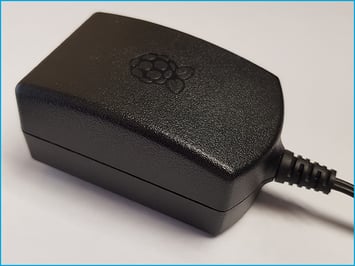
- Connect your Micro-I to external power:
- plug your Micro-I's power adapter into a wall socket and the other end (Micro-USB) into your Micro-I
- turn on the power at the wall socket.
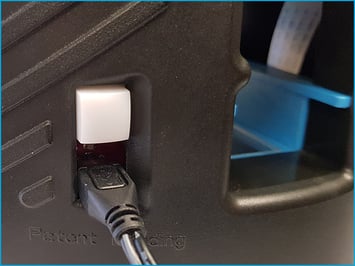
- Turn on your Micro-I:
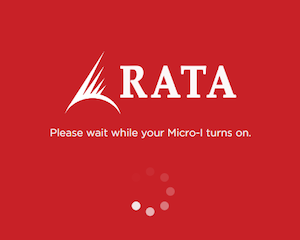
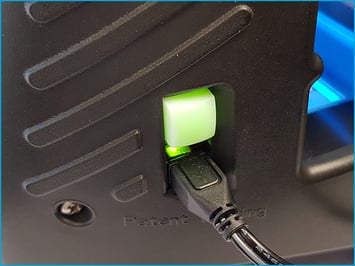
- Press the power button on your Micro-I for two seconds to turn it on:
- the power button's back-light will flash red and green before settling on green
- your Micro-I's internal light will glow yellow and flash white before settling on solid white when ready.
- Press the power button on your Micro-I for two seconds to turn it on:
2. Contact Techion Support
- Please contact Techion Support via https://u.fecpakg2.com/support, and provide:
- the serial number of your Micro-I (i.e. MX-MIC-XXXX-X-XXXXXXXXXX)
- your first and last names
- your email address
- your telephone number
- mention that you receive a "502 Bad Gateway" error when you visit http://10.11.12.1.

3. For Techion Support: