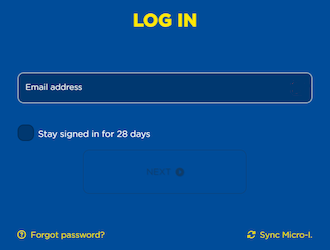
BEHAVIOUR YOU MAY EXPERIENCE:
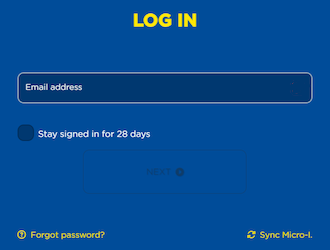
You are shown an error message when you try to log in to the FECPAK portal on https://online.fecpak.com or http://10.11.12.1. The error message is:
- 'Your email address or password is incorrect. If you do not remember your password, please reset it now.'
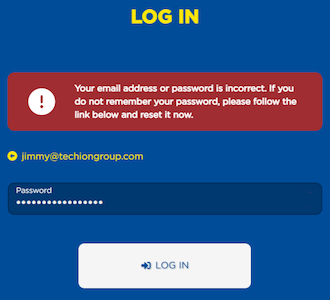
1. INCORRECT LOGIN CREDENTIALS
It may be that you entered your email address and/or password incorrectly.
BEHAVIOUR YOU MAY EXPERIENCE:
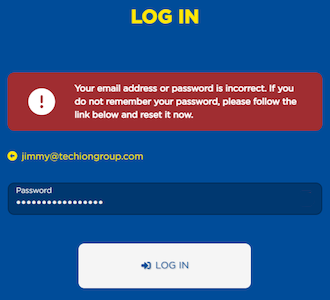
You are shown an error message when you try to log in to the FECPAK portal on http://10.11.12.1. The error message is:
- 'Your email address or password is incorrect. If you do not remember your password, please reset it now.'
Resolve the issue
1. Check you spelled your email address and password correctly
- Re-enter your email address and password:
- Check the spelling of your email address
- If you see a typo in your email address:
- Select the left-pointing arrow beside your email address to go back a step
- Enter your email address
- Select 'Next'.
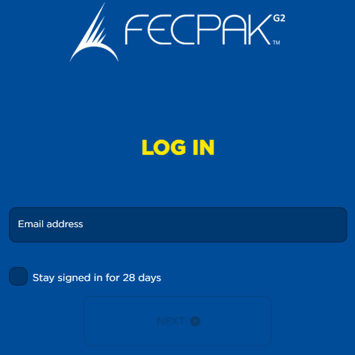
- Enter your password, ensuring you type your password correctly:
- Check you do not have 'CAPS LOCK' turned on.
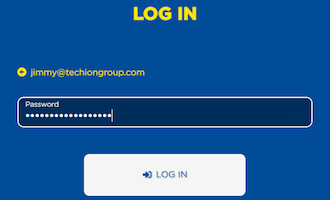
- Select 'Log in'.
2. If you receive the same error message as before, reset your password
- Visit https://online.fecpak.com/.
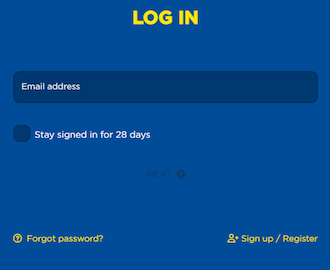
- Select the 'Forgot your password?' link.
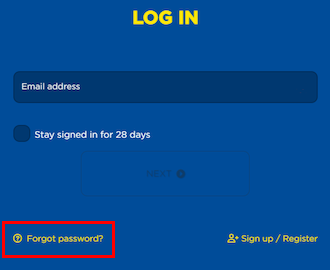
- Enter your email address.
- Select the 'Reset password' button.
- An email is sent to the email address. Allow two to three minutes then check your inbox.
- check your spam folder if you do not receive an email from hello@fecpak.com in your inbox.
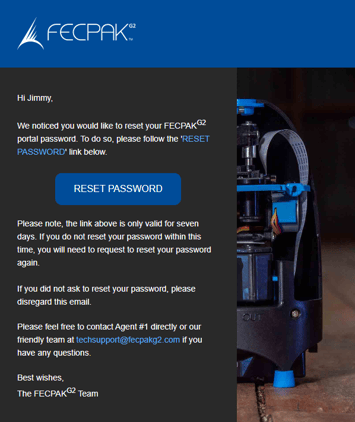
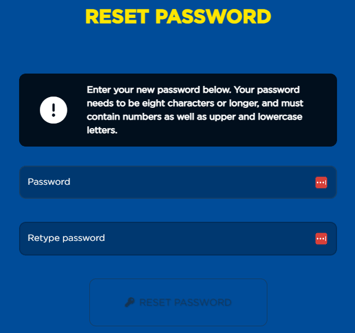
- Open the email and select the 'RESET PASSWORD' button.
- Once the web page opens, type your password, and then retype it a second time.
- your password must contain a combination of at least eight upper and lowercase letters, numbers and special characters.
- Select "Continue".
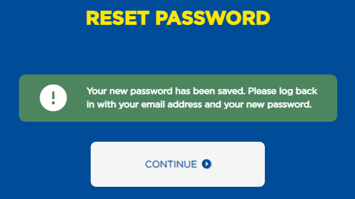
-
-
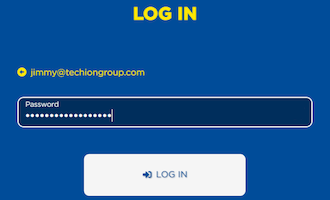
- Enter your email address.
- Select 'Next'.
- Enter your newly created password.
- Select 'Log in'.
-
- Note: You will need to run a sync on your Micro-I to pull through your updated account details.
2. ACCOUNT INFORMATION IS NOT SYNCED WITH YOUR MICRO-I
If the previous solution did not resolve the issue, it may be that your account information has not synced with your Micro-I.
BEHAVIOUR YOU MAY EXPERIENCE:
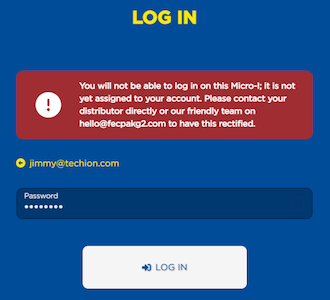
You are shown an error message when you try to log in to the FECPAK portal on http://10.11.12.1. The error message is:
- 'You will not be able to log in on this Micro-I; it is not yet assigned to your account. Please contact your distributor directly or our friendly team on hello@fecpak.com to have this rectified.'
Resolve the issue
1. Connect your computer to your Micro-I
- Connect using your Micro-I's mobile hotspot:
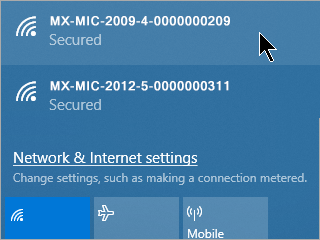
- Select the Wi-Fi settings icon from the system tray on your computer
- Note down the network your computer is currently connected to
- Select your Micro-I (e.g. MX-MIC-XXXX-X-XXXXXXXXXX)
- The serial number of your Micro-I is printed on the bottom of your Micro-I.
- Enter your Micro-I's password and select 'Connect'
- The password of your Micro-I is printed on the bottom of your Micro-I.
- Select the ‘Connect’ option
- Wait for your computer to connect to your Micro-I.
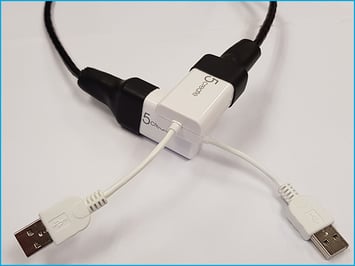
- Or, connect using the Micro-I USB cable:
- Connect one end of the Micro-I USB cable to your computer and the other end to your Micro-I.
2. Connect your Micro-I to the Internet
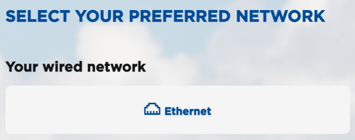
- Open your browser on the computer you used to connect to your Micro-I and go to http://10.11.12.1/scan:
- select 'Ethernet', or scan for a list of available Wi-Fi networks
- select the Wi-Fi network you would like to connect to, which needs to be the same network your computer, laptop or tablet is connected to
- enter your Wi-Fi password and select 'Connect'.
- Wait for your account information to download to your Micro-I.
3. Or, sync your Micro-I
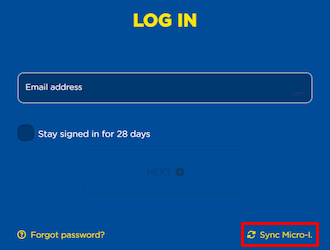
- Visit http://10.11.12.1.
- Select the 'Sync your Micro-I' link.
- Wait for your account information to download to your Micro-I.
4. Log in to your Micro-I
- Visit the FECPAK portal and log in when prompted.
3. MICRO-I IS NOT ASSIGNED TO THE USER'S SUBSCRIPTION
If the previous solution did not resolve the issue, it may be that the Micro-I was not assigned to your user subscription. Techion Support will need to assist in resolving the issue.
BEHAVIOUR YOU MAY EXPERIENCE:
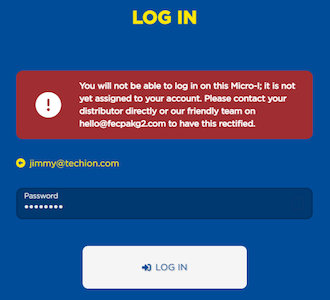
You are shown an error message when you try to log in to the FECPAK portal on http://10.11.12.1. The error message is:
- 'You will not be able to log in on this Micro-I; it is not yet assigned to your account. Please contact your distributor directly or our friendly team on hello@fecpak.com to have this rectified.'
Resolve the issue
1. Contact Techion Support
- Please contact Techion Support via https://u.fecpak.com/support, and provide:
- The serial number of your Micro-I (i.e. MX-MIC-XXXX-X-XXXXXXXXXX)
- Your first and last names
- Your email address
- Your telephone number
- Mention that you receive a warning message that your Micro-I is not assigned to you.

2. For Techion Support
3. Turn on your Micro-I
- Press the power button on your Micro-I for two seconds to turn it on:
- The power button's backlight will flash red and green before settling on green.
- Your Micro-I's internal light will glow yellow and flash white before settling on solid white when ready.
4. Connect your computer to your Micro-I
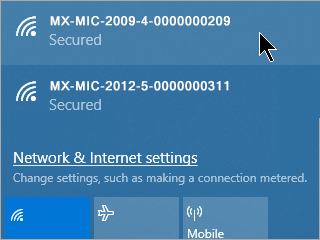
- Connect using your Micro-I's mobile hotspot:
- Select the Wi-Fi settings icon from the system tray on your computer
- Note down the network your computer is currently connected to
- Select your Micro-I (e.g. MX-MIC-XXXX-X-XXXXXXXXXX)
- the serial number of your Micro-I is printed on the bottom of your Micro-I.
- Enter your Micro-I's password and select 'Connect'
- the password of your Micro-I is printed on the bottom of your Micro-I.
- Select the ‘Connect’ option
- Wait for your computer to connect to your Micro-I.
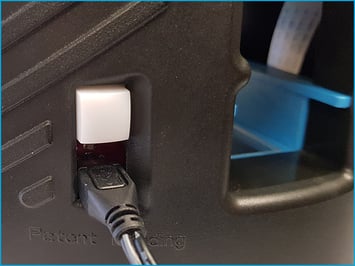
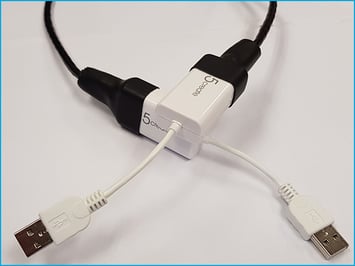
- Or, connect using the Micro-I Direct connection cable:
- Connect one end of the Micro-I Direct connection cable to your computer and the other end to your Micro-I.
5. Connect your Micro-I to the Internet
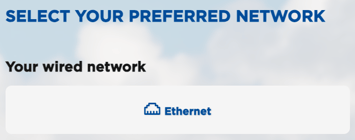
- Open your browser on the computer you used to connect to your Micro-I and go to http://10.11.12.1/scan:
- Select 'Ethernet', or scan for a list of available Wi-Fi networks
- Select the Wi-Fi network you would like to connect to, which needs to be the same network your computer, laptop or tablet is connected to
- Enter your Wi-Fi password and select 'Connect'.
- Wait for your account information to download to your Micro-I.
6. Or, sync your Micro-I
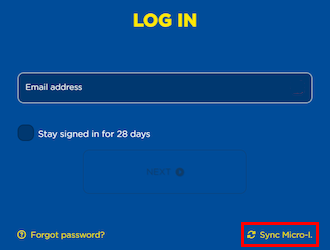
- Visit http://10.11.12.1.
- Select the 'Sync your Micro-I' link.
- Wait for your account information to download to your Micro-I.
7. Log in to your Micro-I
- Visit the FECPAK portal and log in when prompted.