
BEHAVIOUR YOU MAY EXPERIENCE:
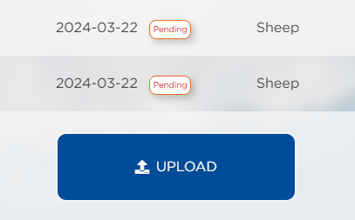
When visiting 'Upload submissions' after selecting the 'Upload' button, your submissions are still listed as pending upload.
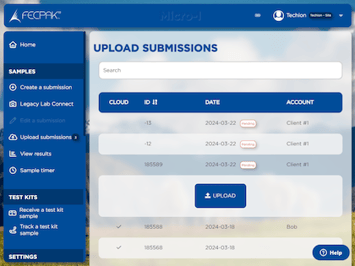
1. MICRO-I IS TURNED OFF
It may be that your Micro-I turned off after you selected the 'Upload' button.
Resolve the issue
1. Turn on your Micro-I
- Press the power button on your Micro-I for two seconds to turn it on:
- the power button's back-light will flash red and green before settling on green
- your Micro-I's internal light will glow yellow and flash white before settling on solid white when ready.
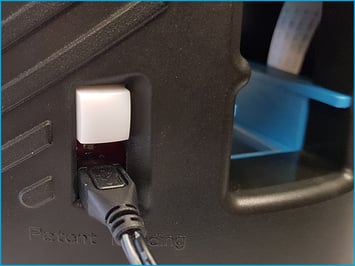
2. If applicable, connect your computer to your Micro-I
- Connect using your Micro-I's mobile hotspot:
- select the Wi-Fi settings icon from the system tray on your computer
- note down the network your computer is currently connected to
- select your Micro-I (e.g. MX-MIC-XXXX-X-XXXXXXXXXX)
- the serial number of your Micro-I is printed on the bottom of your Micro-I.
- enter your Micro-I's password and select 'Connect'
- the password of your Micro-I is printed on the bottom of your Micro-I.
- select the ‘Connect’ option
- wait for your computer to connect to your Micro-I.
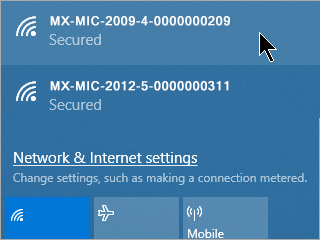
- Or, connect using the Micro-I USB cable:
- connect one end of the Micro-I USB cable to your computer and the other end to your Micro-I.
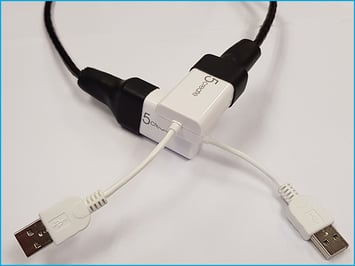
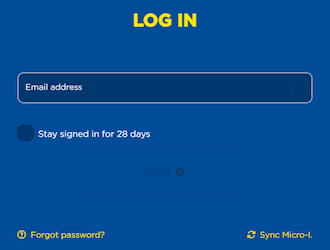
3. Log in to your Micro-I
- Visit the FECPAKG2 portal and log in when prompted.
4. Return to the list of your pending uploads
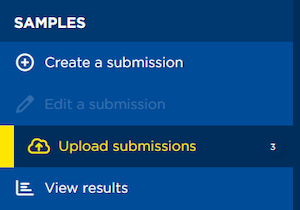
- Select 'upload submissions'
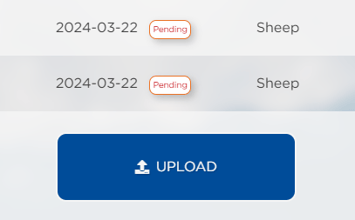
- Select the 'Upload' button.
5. Select the 'Upload' button
- Wait for your samples to upload to the Cloud.
Help Centre
| Please follow a video tutorial on the recommended way to turn on your Micro-I at https://u.fecpakg2.com/hlp-fcpk-trnn. |
2. MICRO-I'S BATTERY CHARGE IS LOW
If the previous solution did not resolve the issue, it may be that your Micro-I's battery charge is too low to power up all the Micro-I's components.
Resolve the issue
1. Turn off your Micro-I
- If your Micro-I is on (i.e. the power button is green), press the power button for three seconds to turn it off:
- the power button's backlight will turn off after flashing red
- your Micro-I's internal light will turn off after flashing amber.
2. Connect your Micro-I to external power
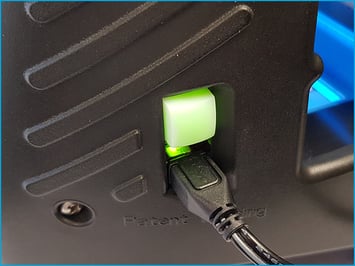
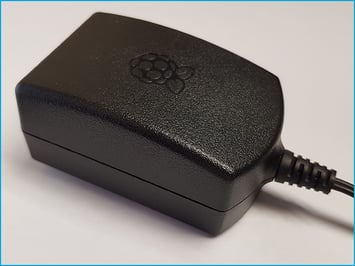
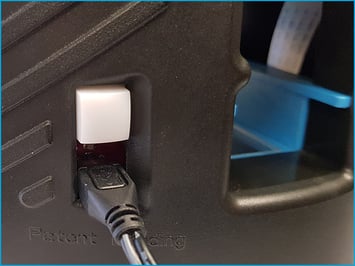
- Plug your Micro-I's power adapter into a wall socket and the other end (Micro-USB) into your Micro-I.
- Turn on the power at the wall socket.
3. Turn on your Micro-I
- Press the power button on your Micro-I for two seconds to turn it on:
- the power button's back-light will flash red and green before settling on green
- your Micro-I's internal light will glow yellow and flash white before settling on solid white when ready.
4. If applicable, connect your computer to your Micro-I
- Connect using your Micro-I's mobile hotspot:
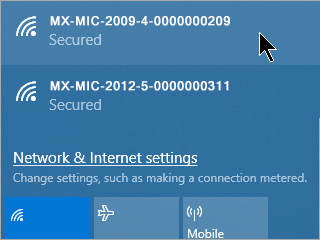
- select the Wi-Fi settings icon from the system tray on your computer
- note down the network your computer is currently connected to
- select your Micro-I (e.g. MX-MIC-XXXX-X-XXXXXXXXXX)
- the serial number of your Micro-I is printed on the bottom of your Micro-I.
- enter your Micro-I's password and select 'Connect'
- the password of your Micro-I is printed on the bottom of your Micro-I.
- select the ‘Connect’ option
- wait for your computer to connect to your Micro-I.
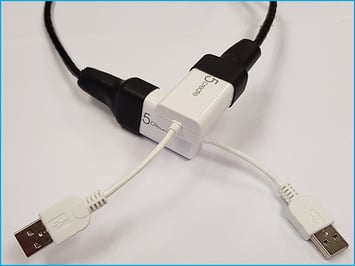
- Or, connect using the Micro-I USB cable:
- connect one end of the Micro-I USB cable to your computer and the other end to your Micro-I.
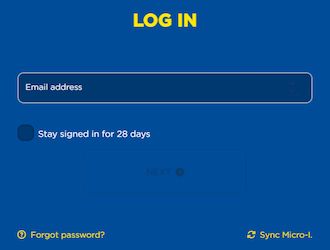
5. Log in to your Micro-I
- Visit the FECPAKG2 portal and log in when prompted.
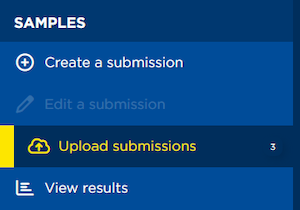
6. Return to the list of your pending uploads
- Select 'Upload submissions'
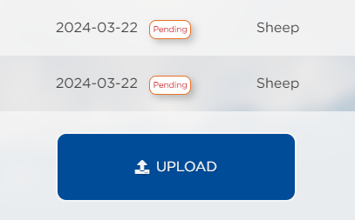
- Select the 'Upload' button.
5. Select the 'Upload ' button
- Wait for your samples to upload to the Cloud.
3. MICRO-I LOST ITS CONNECTION TO THE NETWORK
If the previous solution did not resolve the issue, it may be that your Micro-I was disconnected from your network after you selected the 'Upload' button:
- your Micro-I, Wi-Fi router or network access point dropped the connection
- the Ethernet cable, if used, was removed.
Resolve the issue
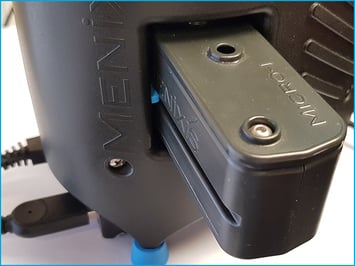
1. Remove the cassette
- Pull the cassette out gently from the front of your Micro-I.
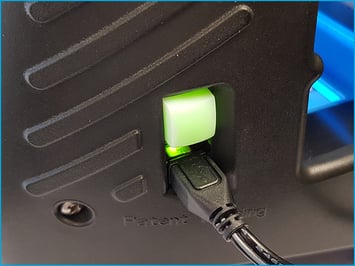
2. Turn off your Micro-I
- If your Micro-I is on (i.e. the power button is green), press the power button for three seconds to turn it off:
- the power button's backlight will turn off after flashing red
- your Micro-I's internal light will turn off after flashing amber.
3. Inspect the equipment
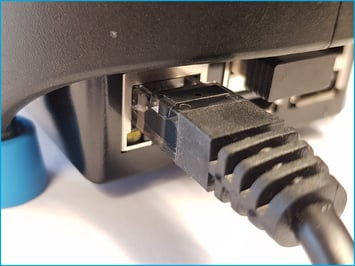
- If applicable, check that the Ethernet cable is plugged in and is not visibly damaged.
- If the Ethernet cable is visibly damaged, please replace it.
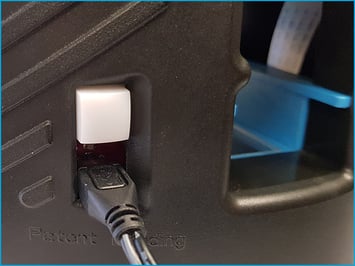
4. Turn on your Micro-I
- Press the power button on your Micro-I for two seconds to turn it on:
- the power button's back light will flash red and green before settling on green
- your Micro-I's internal light will glow yellow and flash white before settling on solid white when ready.
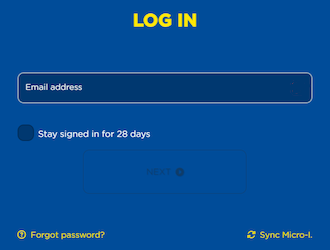
5. Log in to your Micro-I
- Visit the FECPAKG2 portal and log in when prompted.
6. Return to the list of your pending uploads
- Select 'Upload submissions'
- Select the 'Upload' button.
Help Centre
| Please refer to the Help Centre for further information on connecting your Micro-I to the Internet at https://online.fecpakg2.com/help-ethernet. |
5. DATA ON YOUR MICRO-I CAN NOT BE UPLOADED
If the previous solution did not resolve the issue, it may be that incompatible data was stored as a part of your submission, which prevents your submissions from uploading to the Cloud.
Resolve the issue
1. Prepare your Micro-I for Techion Support to connect to it remotely
- Turn off your Micro-I:
- if your Micro-I is on (i.e. the power button is green), press the power button for three seconds to turn it off:
- the power button's backlight will turn off after flashing red
- your Micro-I's internal light will turn off after flashing amber.
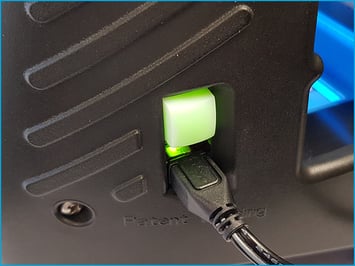
- Connect your Micro-I to your network:
- move your Micro-I near your Wi-Fi router or network access point
- plug one end of the Ethernet cable into your Micro-I and the other end into your Wi-Fi router or network access point.
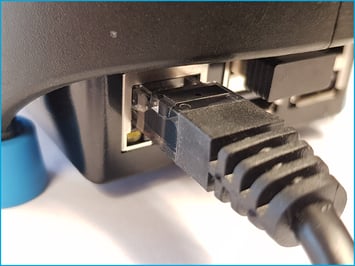
- Connect your Micro-I to external power:
- plug your Micro-I's power adapter into a wall socket and the other end (Micro-USB) into your Micro-I
- turn on the power at the wall socket.
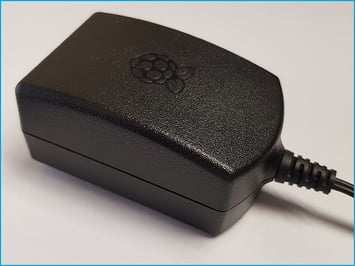
- Turn on your Micro-I:
- Press the power button on your Micro-I for two seconds to turn it on:
- the power button's back-light will flash red and green before settling on green
- your Micro-I's internal light will glow yellow and flash white before settling on solid white when ready.
- Press the power button on your Micro-I for two seconds to turn it on:
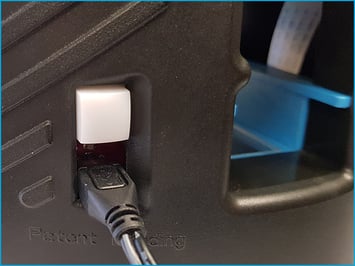
2. Contact Techion Support
- Please contact Techion Support via https://u.fecpakg2.com/support, and provide:
- the serial number of your Micro-I (i.e. MX-MIC-XXXX-X-XXXXXXXXXX)
- your first and last names
- your email address
- your telephone number
- mention that your submissions have not been uploaded to the Cloud.

3. For Techion Support: