
USB TETHERING TO MICRO-I
From Software version 3.21 onwards, the Micro-I now allows you to tether your Android device to the Micro-I using the cable that came with your phone (or applicable data/sync cable that supports file transfer). This allows you to share the internet connection/mobile data set up on your Android device with your Micro-I so that the Micro-I can submit samples, synchronize sample data, and more. Please note that this feature is currently limited to Android devices. iOS devices are currently unsupported.
Connect the Micro-I to your Android device using USB
Please Note: Parts of this guide may differ between different phone models.
1. Open the settings on your Android device.
2. Locate the Mobile Hotspot settings on your device.
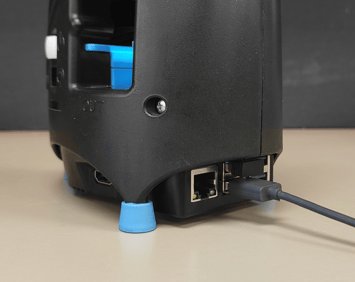
3. Connect the USB data/sync cable between your Micro-I and Android Device.
- Note: any of the 4 USB ports on the Micro-I will work. Be sure not to remove the small Wi-Fi adapter that came with your Micro-I.
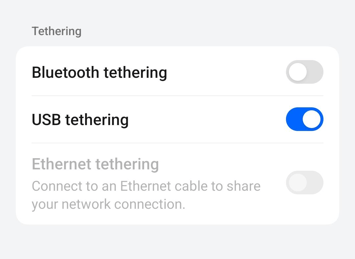
4. Enable "USB Tethering" on your Android device.
- Note: Allow a few seconds after enabling this setting for the Micro-I to pick up the connection.
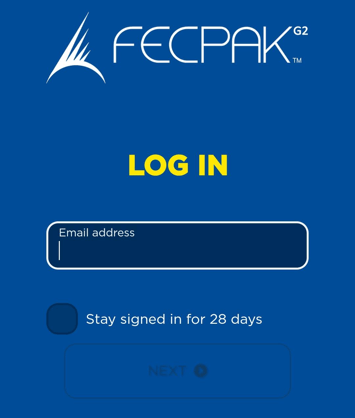
5. Visit https://online.fecpakg2.com on your phone and log in with your details.
6. Select "Create a submission".
7. Select your Micro-I from the list.
- Note: The connection message will mention Ethernet. This is because the connection between the phone and Micro-I is treated the same as an Ethernet connection.