
BEHAVIOUR YOU MAY EXPERIENCE:
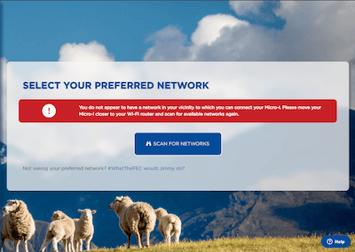
You are shown an error message when you visit http://10.11.12.1/scan and scan for networks in your area. The error message is:
- 'You do not appear to have a network in your vicinity to which you can connect your Micro-I. Please move your Micro-I closer to your Wi-Fi router and scan for available networks again.'
1. WI-FI ROUTER OR ACCESS POINT IS TURNED OFF
It may be that your Wi-Fi router or network access point is turned off.
Resolve the issue
1. Turn on your Wi-Fi router or network access point
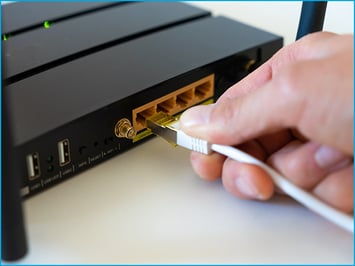
- Check that your Wi-Fi router or network access point's power adapter is plugged into the wall socket and the other end into your Wi-Fi router or network access point.
- Check that your Wi-Fi router or network access point is turned on.
- Check that your Wi-Fi router or network access point is connected to the Internet.
- Feel free to restart your Wi-Fi router or network access point if you are able.
2. MICRO-I'S BATTERY CHARGE IS LOW
If the previous solution did not resolve the issue, it may be that your Micro-I's battery charge is too low to power up all the Micro-I's components.
Resolve the issue
1. Turn off your Micro-I
- If your Micro-I is on (i.e. the power button is green), press the power button for three seconds to turn it off:
- the power button's backlight will turn off after flashing red
- your Micro-I's internal light will turn off after flashing amber.
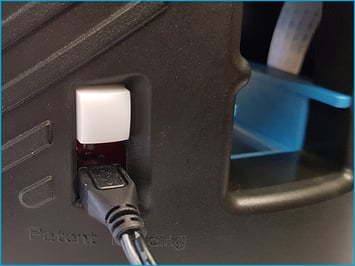
2. Connect your Micro-I to external power
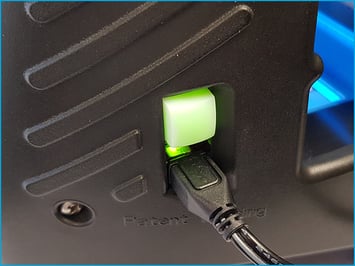
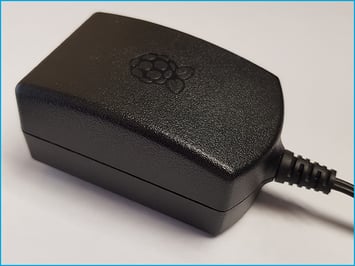
- Plug your Micro-I's power adapter into a wall socket and the other end (Micro-USB) into your Micro-I.
- Turn on the power at the wall socket.
3. Turn on your Micro-I
- Press the power button on your Micro-I for two seconds to turn it on:
- the power button's back-light will flash red and green before settling on green
- your Micro-I's internal light will glow yellow and flash white before settling on solid white when ready.
4. Connect your computer to your Micro-I
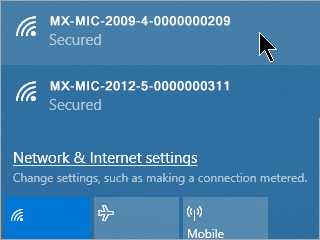
- Connect using your Micro-I's mobile hotspot:
- select the Wi-Fi settings icon from the system tray on your computer
- note down the network your computer is currently connected to
- select your Micro-I (e.g. MX-MIC-XXXX-X-XXXXXXXXXX)
- the serial number of your Micro-I is printed on the bottom of your Micro-I.
- enter your Micro-Is password and select 'Connect'
- the password of your Micro-I is printed on the bottom of your Micro-I.
- select the ‘Connect’ option
- wait for your computer to connect to your Micro-I.
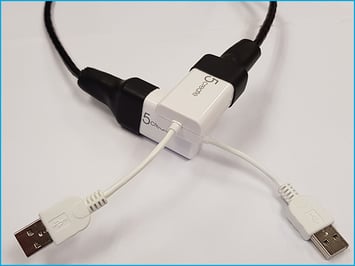
- Or, connect using the Micro-I USB cable:
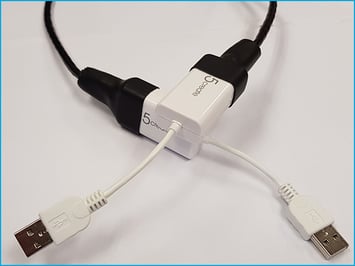
- connect one end of the Micro-I USB cable to your computer and the other end to your Micro-I.
5. Connect your Micro-I to the Internet
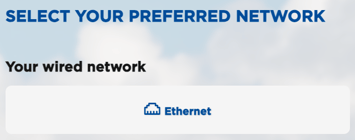
- Open your browser on the computer you used to connect to your Micro-I and go to http://10.11.12.1/scan:
- select 'Ethernet', or scan for a list of available Wi-Fi networks
- select the Wi-Fi network you would like to connect to, which needs to be the same network your computer, laptop or tablet is connected to
- enter your Wi-Fi password and select 'Connect'.
- Wait for your account information to download to your Micro-I.
3. MICRO-I IS TOO FAR FROM THE WI-FI ROUTER
It may be that your Micro-I is too far from your Wi-Fi router or network access point. Please keep in mind walls absorb the Wi-Fi signal and reduce its range.
Resolve the issue
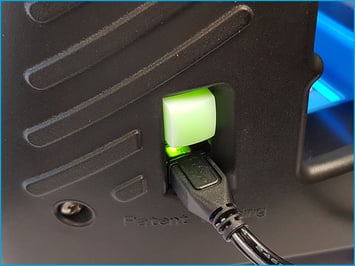
1. Turn off your Micro-I
- If your Micro-I is on (i.e. the power button is green), press the power button for three seconds to turn it off:
- the power button's backlight will turn off after flashing red
- your Micro-I's internal light will turn off after flashing amber.
2. Relocate your Micro-I
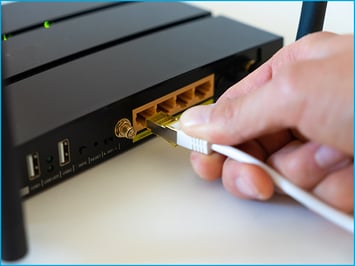
- Move your Micro-I near your Wi-Fi router or network access point.
3. Turn on your Micro-I
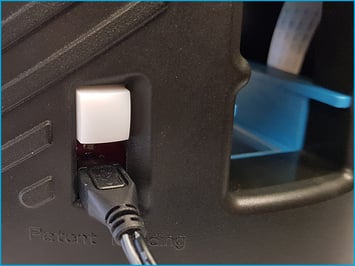
- Press the power button on your Micro-I for two seconds to turn it on:
- the power button's backlight will flash red and green before settling on green
- your Micro-I's internal light will glow yellow and flash white before settling on solid white when ready.
4. Connect your computer to your Micro-I
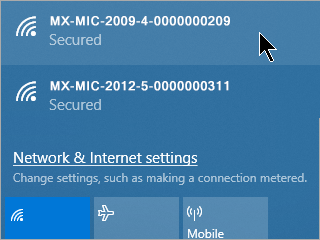
- Connect using your Micro-I's mobile hotspot:
- select the Wi-Fi settings icon from the system tray on your computer
- note down the network your computer is currently connected to
- select your Micro-I (e.g. MX-MIC-XXXX-X-XXXXXXXXXX)
- the serial number of your Micro-I is printed on the bottom of your Micro-I.
- enter your Micro-I's password and select 'Connect'
- the password of your Micro-I is printed on the bottom of your Micro-I.
- select the ‘Connect’ option
- wait for your computer to connect to your Micro-I.
- Or, connect using the Micro-I USB cable:
- connect one end of the Micro-I USB cable to your computer and the other end to your Micro-I.
5. Connect your Micro-I to the Internet
- Open your browser on the computer you used to connect to your Micro-I and go to http://10.11.12.1/scan:
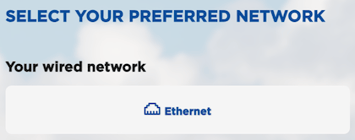
- select 'Ethernet', or scan for a list of available Wi-Fi networks
- select the Wi-Fi network you would like to connect to, which needs to be the same network your computer, laptop or tablet is connected to
- enter your Wi-Fi password and select 'Connect'.
- Wait for your account information to download to your Micro-I.
Help Centre
| Please refer to the Help Centre for further information on connecting your Micro-I to the Internet at https://online.fecpakg2.com/help-ethernet. |
4. WI-FI NETWORK USES THE WEP PROTOCOL
It may be that your Wi-Fi network uses the WEP protocol, which is not compatible with your Micro-I .
Resolve the issue
1. Turn off your Micro-I
- If your Micro-I is on (i.e. the power button is green), press the power button for three seconds to turn it off:
- the power button's backlight will turn off after flashing red
- your Micro-I's internal light will turn off after flashing amber.
2. Connect your Micro-I to your network
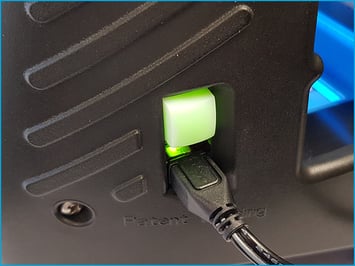
- Move your Micro-I near your Wi-Fi router or network access point.
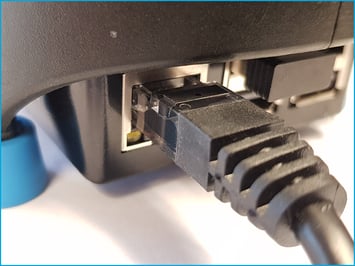
- Plug one end of the Ethernet cable into your Micro-I and the other end into your Wi-Fi router or network access point.
3. Turn on your Micro-I
- Press the power button on your Micro-I for two seconds to turn it on:
- the power button's back-light will flash red and green before settling on green
- your Micro-I's internal light will glow yellow and flash white before settling on solid white when ready.
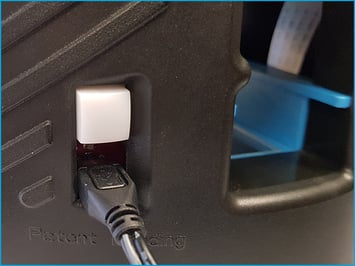
4. Connect your computer to your Micro-I
- Connect using your Micro-I's mobile hotspot:
- select the Wi-Fi settings icon from the system tray on your computer
- note down the network your computer is currently connected to
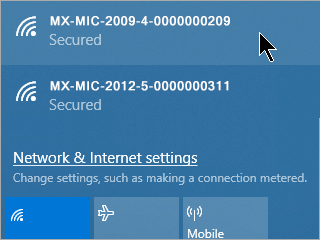
- select your Micro-I (e.g. MX-MIC-XXXX-X-XXXXXXXXXX)
- the serial number of your Micro-I is printed on the bottom of your Micro-I.
- enter your Micro-I's password and select 'Connect'
- the password of your Micro-I is printed on the bottom of your Micro-I.
- select the ‘Connect’ option
- wait for your computer to connect to your Micro-I.
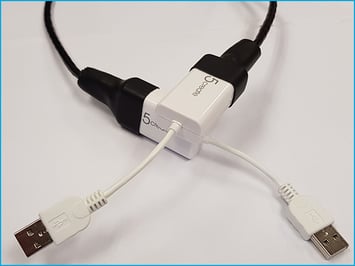
- Or, connect using the Micro-I USB cable:
- connect one end of the Micro-I USB cable to your computer and the other end to your Micro-I.
5. Connect your Micro-I to the Internet
- Open your browser on the computer you used to connect to your Micro-I and go to http://10.11.12.1/scan.
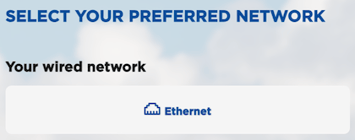
- Select 'Ethernet'.
- Wait for your account information to download to your Micro-I.
Help Centre
| Please refer to the Help Centre for further information on connecting your Micro-I to the Internet at https://online.fecpakg2.com/help-ethernet. |
5. SOFTWARE IS NOT REGISTERING WI-FI NETWORKS
If the previous solution did not resolve the issue, it may be that the software might be corrupt and unable to register any networks.
Resolve the issue
1. Turn off your Micro-I
- If your Micro-I is on (i.e. the power button is green), press the power button for three seconds to turn it off:
- the power button's backlight will turn off after flashing red
- your Micro-I's internal light will turn off after flashing amber.
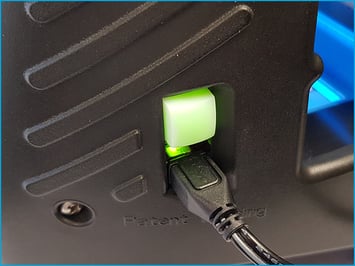
2. Prepare your Micro-I for Techion Support to connect to it remotely
- Connect your Micro-I to your network:
- move your Micro-I near your Wi-Fi router or network access point
- plug one end of the Ethernet cable into your Micro-I and the other end into your Wi-Fi router or network access point.
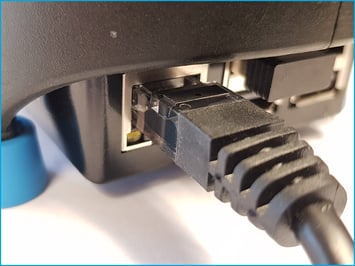
- Connect your Micro-I to external power:
- plug your Micro-I's power adapter into a wall socket and the other end (Micro-USB) into your Micro-I
- turn on the power at the wall socket.
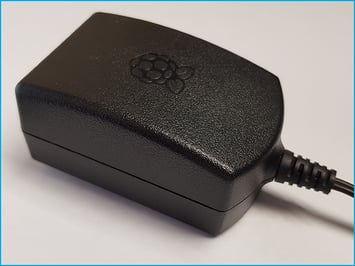
- Turn on your Micro-I:
- Press the power button on your Micro-I for two seconds to turn it on:
- the power button's back-light will flash red and green before settling on green
- your Micro-I's internal light will glow yellow and flash white before settling on solid white when ready.
- Press the power button on your Micro-I for two seconds to turn it on:
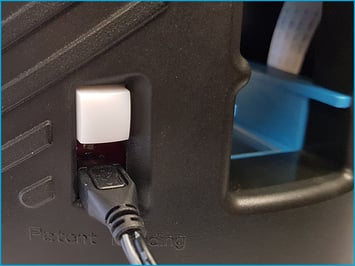
3. Contact Techion Support
- Please contact Techion Support via https://u.fecpakg2.com/support, and provide:
- the serial number of your Micro-I (i.e. MX-MIC-XXXX-X-XXXXXXXXXX)
- your first and last names
- your email address
- your telephone number
- mention your Micro-I is not detecting Wi-Fi networks.

4. For Techion Support
Help Centre
| Please refer to the Help Centre for further information on connecting your Micro-I to the Internet at https://online.fecpakg2.com/help-ethernet. |
6. MICRO-I'S INTERNAL NETWORK ADAPTER IS FAULTY
If the previous solution did not resolve the issue, it may be that your Micro-I's network adapter:
- is set up incorrectly
- is faulty.
Resolve the issue
1. Turn off your Micro-I
- If your Micro-I is on (i.e. the power button is green), press the power button for three seconds to turn it off:
- the power button's backlight will turn off after flashing red
- your Micro-I's internal light will turn off after flashing amber.
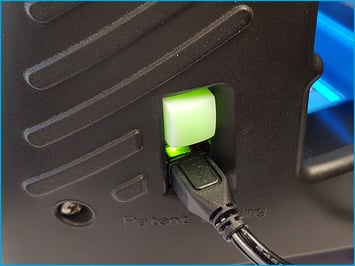
2. Prepare your Micro-I for Techion Support to connect to it remotely
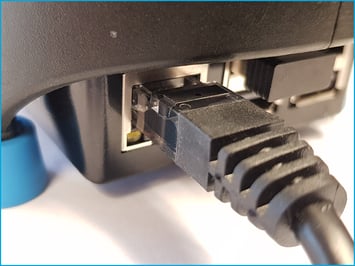
- Connect your Micro-I to your network:
- move your Micro-I near your Wi-Fi router or network access point
- plug one end of the Ethernet cable into your Micro-I and the other end into your Wi-Fi router or network access point.
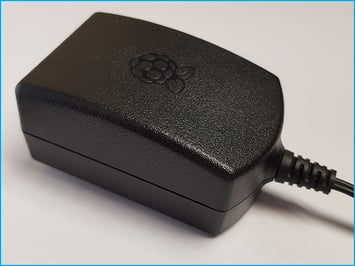
- Connect your Micro-I to external power:
- plug your Micro-I's power adapter into a wall socket and the other end (Micro-USB) into your Micro-I
- turn on the power at the wall socket.
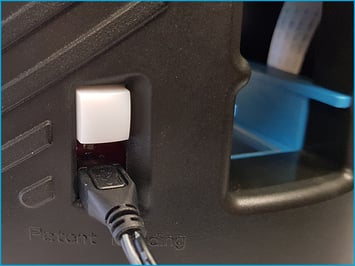
- Turn on your Micro-I:
- Press the power button on your Micro-I for two seconds to turn it on:
- the power button's back-light will flash red and green before settling on green
- your Micro-I's internal light will glow yellow and flash white before settling on solid white when ready.
- Press the power button on your Micro-I for two seconds to turn it on:
3. Contact Techion Support
- Please contact Techion Support via https://u.fecpakg2.com/support, and provide:
- the serial number of your Micro-I (i.e. MX-MIC-XXXX-X-XXXXXXXXXX)
- your first and last names
- your email address
- your telephone number
- mention your Micro-I is unable to detect Wi-Fi networks.

4. For Techion Support
Help Centre
| Please refer to the Help Centre for further information on connecting your Micro-I to the Internet at https://online.fecpakg2.com/help-ethernet. |
WORKAROUND
1. Turn off your Micro-I
- If your Micro-I is on (i.e. the power button is green), press the power button for three seconds to turn it off:
- the power button's backlight will turn off after flashing red
- your Micro-I's internal light will turn off after flashing amber.
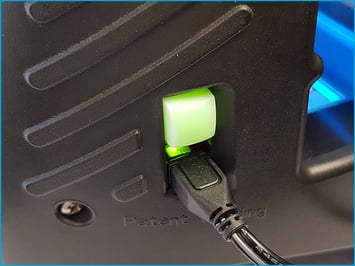
2. Connect your Micro-I to your network
- Move your Micro-I near your Wi-Fi router or network access point.
- Plug one end of the Ethernet cable into your Micro-I and the other end into your Wi-Fi router or network access point.

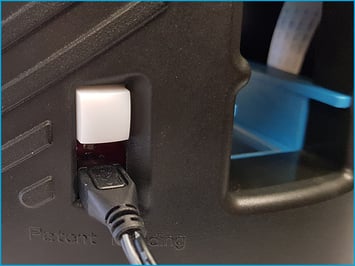
3. Turn on your Micro-I
- Press the power button on your Micro-I for two seconds to turn it on:
- the power button's back-light will flash red and green before settling on green
- your Micro-I's internal light will glow yellow and flash white before settling on solid white when ready.
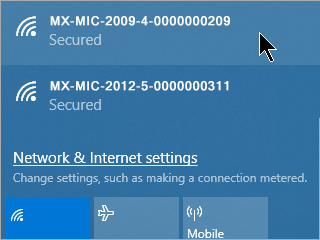
4. Connect your computer to your Micro-I
- Connect using your Micro-I's mobile hotspot:
- select the Wi-Fi settings icon from the system tray on your computer
- note down the network your computer is currently connected to
- select your Micro-I (e.g. MX-MIC-XXXX-X-XXXXXXXXXX)
- the serial number of your Micro-I is printed on the bottom of your Micro-I.
- enter your Micro-I's password and select 'Connect'
- the password of your Micro-I is printed on the bottom of your Micro-I.
- select the ‘Connect’ option
- wait for your computer to connect to your Micro-I.
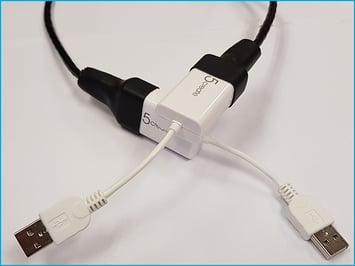
- Or, connect using the Micro-I USB cable:
- connect one end of the Micro-I USB cable to your computer and the other end to your Micro-I.
5. Connect your Micro-I to the Internet
- Open your browser on the computer you used to connect to your Micro-I and go to http://10.11.12.1/scan.
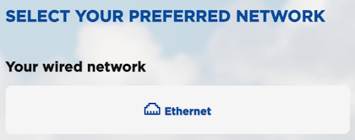
- Select 'Ethernet'.
- Wait for your account information to download to your Micro-I.
Help Centre
| Please refer to the Help Centre for further information on connecting your Micro-I to the Internet at https://online.fecpakg2.com/help-ethernet. |