
BEHAVIOUR YOU MAY EXPERIENCE:
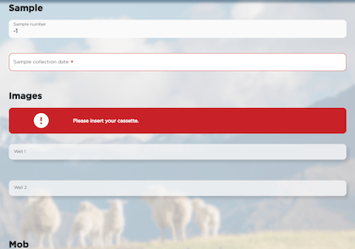
Your sample images have been capturing for more than 12 minutes.
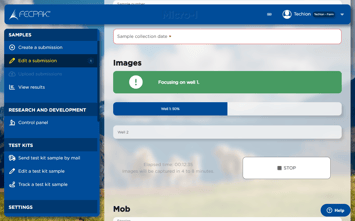
1. MICRO-I IS TURNED OFF
It may be that your Micro-I turned off after the cassette was drawn in.
Resolve the issue
1. Remove the cassette
- Pull the cassette out gently from the back of your Micro-I.
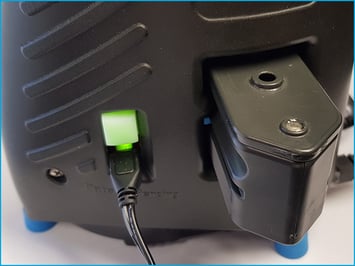
2. Turn on your Micro-I
- Press the power button on your Micro-I for two seconds to turn it on:
- the power button's back-light will flash red and green before settling on green
- your Micro-I's internal light will glow yellow and flash white before settling on solid white when ready.
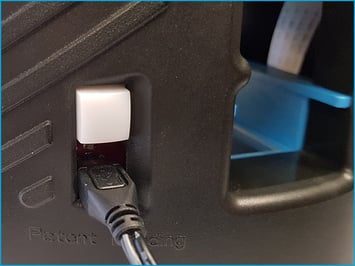
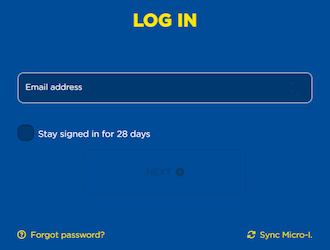
3. Log in to your Micro-I
- Visit the FECPAKG2 portal and log in when prompted.
4. Return to your submission
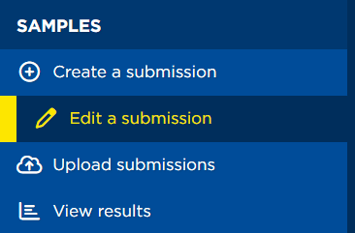
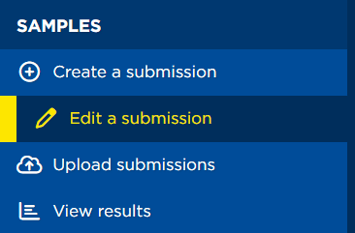
- Select 'Edit a submission'.
- Select the relevant Micro-I, if prompted.
- Select the sample you want to submit.
5. Check your sample
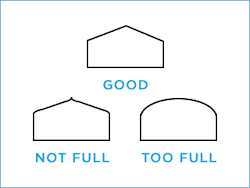
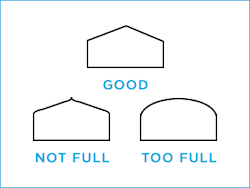
- Confirm that your fill is still good:
- if not and your sample has been resting in the sedimenter/saline for less than an hour, refill the cassette
- if not and your sample has been resting in the sedimenter/saline for more than an hour, prepare a new sample.
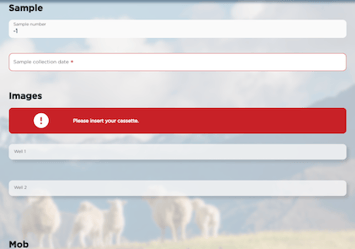
6. Insert the cassette
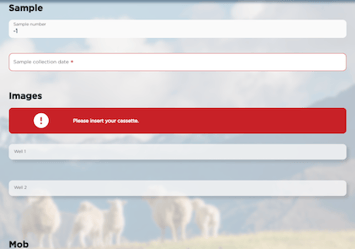
- When prompted:
- hold the cassette as still and level as possible
- gently insert the cassette into your Micro-I, leading with the pointed end
- ensure the cassette is pushed as far in until you feel resistance from the motors.
Help Centre
| Please follow a video tutorial on the recommended way to turn on your Micro-I at https://u.fecpakg2.com/hlp-fcpk-trnn. |
2. MICRO-I'S BATTERY CHARGE IS LOW
It may be that your Micro-I's battery's charge is too low to power up all the Micro-I's components.
Resolve the issue
1. Eject and remove the cassette
- Pull the cassette out gently from the back of your Micro-I.
2. Turn off your Micro-I
- If your Micro-I is on (i.e. the power button is green), press the power button for three seconds to turn it off:
- the power button's backlight will turn off after flashing red
- your Micro-I's internal light will turn off after flashing amber.
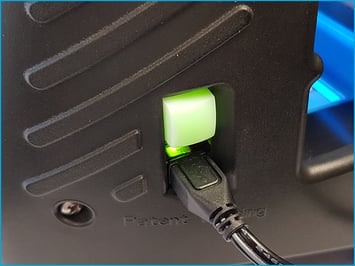
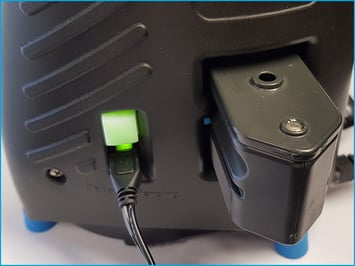
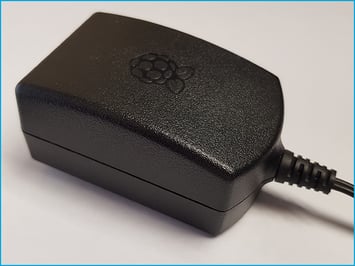
3. Connect your Micro-I to external power
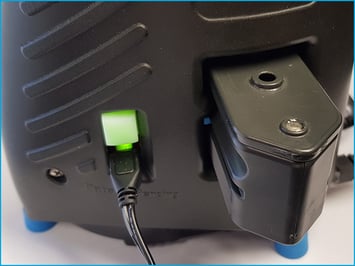
- Plug your Micro-I's power adapter into a wall socket and the other end (Micro-USB) into your Micro-I.
- Turn on the power at the wall socket.
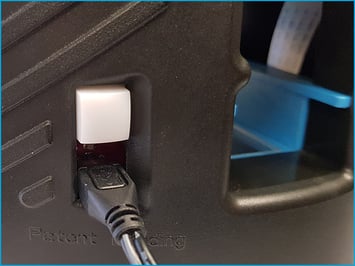
4. Turn on your Micro-I
- Press the power button on your Micro-I for two seconds to turn it on:
- the power button's backlight will flash red and green before settling on green
- your Micro-I's internal light will glow yellow and flash white before settling on solid white when ready.
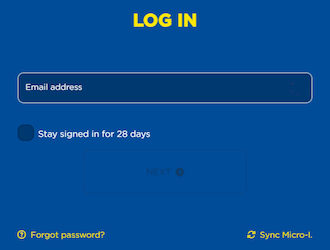
5. Log in to your Micro-I
- Visit the FECPAKG2 portal and log in when prompted.
6. Return to your submission
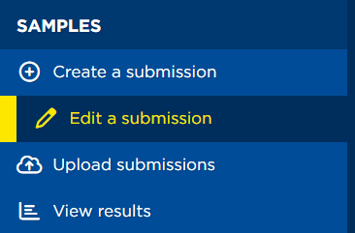
- Select 'edit a submission'.
- Select the relevant Micro-I, if prompted.
- Select the sample you want to submit.
7. Check your sample
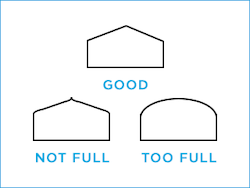
- Confirm that your fill is still good:
- if not and your sample has been resting in the sedimenter/saline for less than an hour, refill the cassette
- if not and your sample has been resting in the sedimenter/saline for more than an hour, prepare a new sample.
8. Insert the cassette
- When prompted:
- hold the cassette as still and level as possible
- gently insert the cassette into your Micro-I, leading with the pointed end
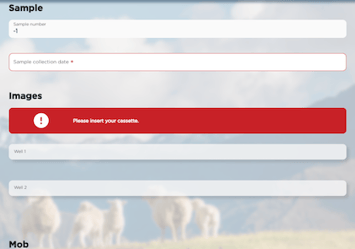
- ensure the cassette is pushed as far in until you feel resistance from the motors.
3. CASSETTE IS NOT INSERTED FAR ENOUGH
If the previous solution did not resolve the issue, it may be that you did not insert the cassette far enough into the Micro-I, and the motorised wheel was not able to grab a hold of the cassette.
Resolve the issue
1. Eject and remove the cassette
- Pull the cassette out gently from the back of your Micro-I.
2. Reload the web page
- Refresh your web page by holding down the 'Ctrl' key while pressing 'F5'.

3. Return to your submission
- If you were taken away from the sample submission form:
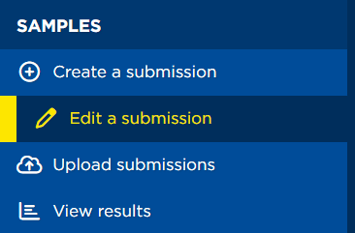
- select 'edit a submission'
- select the sample you want to submit.
4. Check your sample
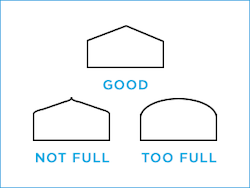
- Confirm that your fill is still good:
- if not and your sample has been resting in the sedimenter/saline for less than an hour, refill the cassette
- if not and your sample has been resting in the sedimenter/saline for more than an hour, prepare a new sample.
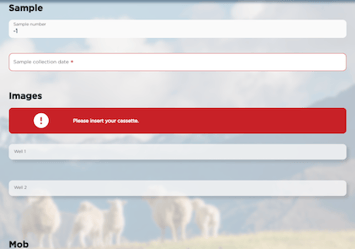
5. Insert the cassette
- When prompted:
- hold the cassette as still and level as possible
- gently insert the cassette into your Micro-I, leading with the pointed end
- ensure the cassette is pushed as far in until you feel resistance from the motors.
Help Centre
| Please refer to the Help Centre for a video on the recommended way of inserting a cassette at https://u.fecpakg2.com/hlp-fcpk-insrt. |
4. MICRO-I LOST ITS CONNECTION TO THE NETWORK
If the previous solution did not resolve the issue, it may be that your Micro-I was disconnected from your network after you visited the submission page:
- your Micro-I, Wi-Fi router or network access point dropped the connection
- the Ethernet cable, if used, was removed.
Resolve the issue
1. Eject and remove the cassette
- Pull the cassette out gently from the back of your Micro-I.
2. Turn off your Micro-I
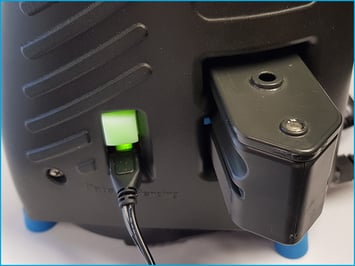
- If your Micro-I is on (i.e. the power button is green), press the power button for three seconds to turn it off:
- the power button's backlight will turn off after flashing red
- your Micro-I's internal light will turn off after flashing amber.
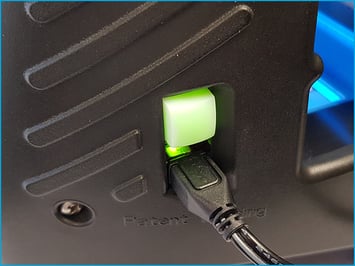
3. Inspect the equipment
- If applicable, check that the Ethernet cable is plugged in and is not visibly damaged.
- If the Ethernet cable is visibly damaged, please replace it.
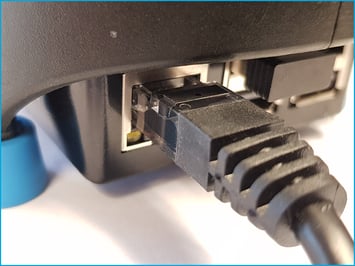
4. Turn on your Micro-I
- Press the power button on your Micro-I for two seconds to turn it on:
- the power button's backlight will flash red and green before settling on green
- your Micro-I's internal light will glow yellow and flash white before settling on solid white when ready.
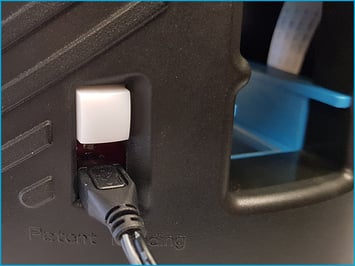
5. Log in to your Micro-I
- Visit the FECPAKG2 portal and log in when prompted.
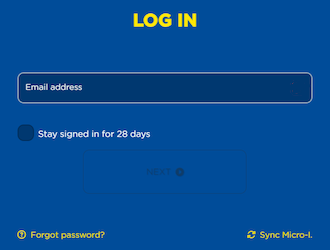
6. Return to your submission
- Select 'edit a submission'.
- Select the relevant Micro-I, if prompted.
- Select the sample you want to submit.
7. Check your sample
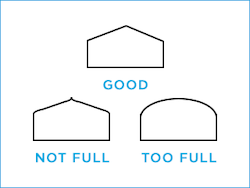
- Confirm that your fill is still good:
- if not and your sample has been resting in the sedimenter/saline for less than an hour, refill the cassette
- if not and your sample has been resting in the sedimenter/saline for more than an hour, prepare a new sample.
8. Insert the cassette
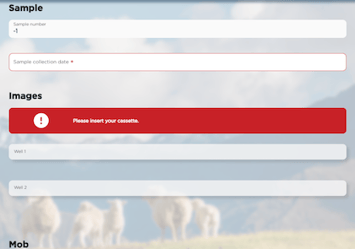
- When prompted:
- hold the cassette as still and level as possible
- gently insert the cassette into your Micro-I, leading with the pointed end
- ensure the cassette is pushed as far in until you feel resistance from the motors.
Help Centre
Tables can't be imported directly. Please insert an image of your table which can be found here.
| Please refer to the Help Centre for further information on connecting your Micro-I to the Internet at https://online.fecpakg2.com/help-ethernet. |
5. CAMERA IS POSITIONED TOO HIGH OR TOO LOW
If the previous solution did not resolve the issue, it may be that the camera is positioned too high or too low, and unable to focus on the sample.
Resolve the issue
1. Eject and remove the cassette
- Pull the cassette out gently from the back of your Micro-I.
2. Turn off your Micro-I
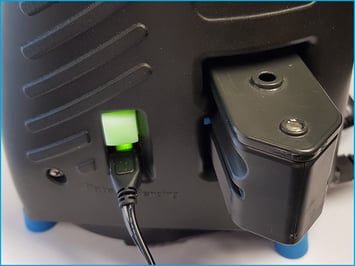
- If your Micro-I is on (i.e. the power button is green), press the power button for three seconds to turn it off:
- the power button's backlight will turn off after flashing red
- your Micro-I's internal light will turn off after flashing amber.
3. Turn on your Micro-I
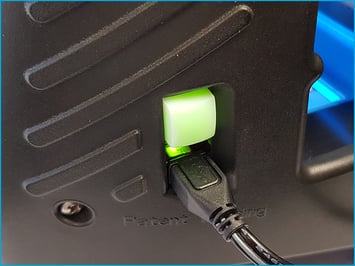
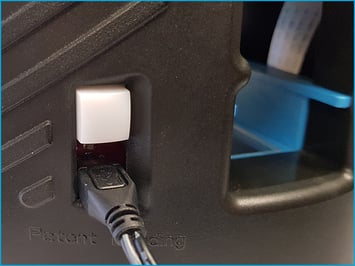
- Press the power button on your Micro-I for two seconds to turn it on:
- the power button's back-light will flash red and green before settling on green
- your Micro-I's internal light will glow yellow and flash white before settling on solid white when ready.
4. Log in to your Micro-I
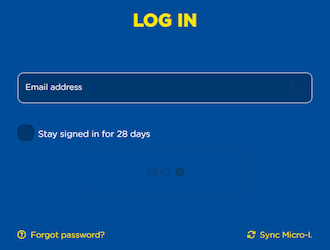
- Visit the FECPAKG2 portal and log in when prompted.
5. Return to your submission
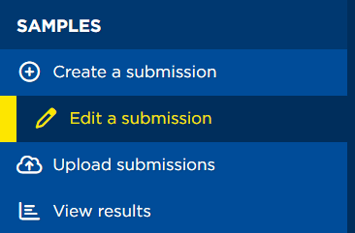
- Select 'edit a submission'.
- Select the relevant Micro-I, if prompted.
- Select the sample you want to submit.
6. Check your sample
- Confirm that your fill is still good:
- if not and your sample has been resting in the sedimenter/saline for less than an hour, refill the cassette
- if not and your sample has been resting in the sedimenter/saline for more than an hour, prepare a new sample.
7. Insert the cassette
- When prompted:
- hold the cassette as still and level as possible
- gently insert the cassette into your Micro-I, leading with the pointed end
- ensure the cassette is pushed as far in until you feel resistance from the motors.
6. SOFTWARE DID NOT START UP CORRECTLY
If the previous solution did not resolve the issue, it may be that the Micro-I's software did not start up correctly.
Resolve the issue
1. Eject and remove the cassette
- Pull the cassette out gently from the back of your Micro-I.
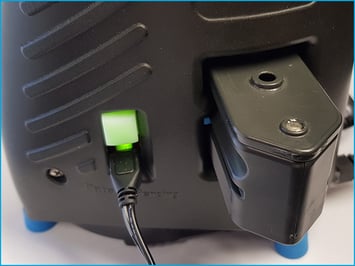
2. Turn off your Micro-I
- If your Micro-I is on (i.e. the power button is green), press the power button for three seconds to turn it off:
- the power button's backlight will turn off after flashing red
- your Micro-I's internal light will turn off after flashing amber.
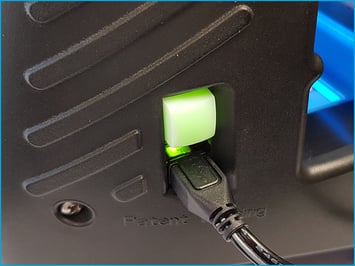
3. Turn on your Micro-I
- Press the power button on your Micro-I for two seconds to turn it on:
- the power button's backlight will flash red and green before settling on green
- your Micro-I's internal light will glow yellow and flash white before settling on solid white when ready.
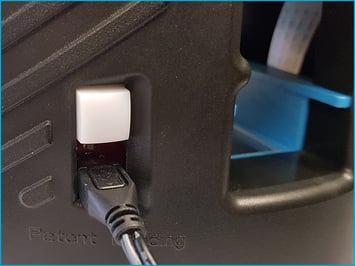
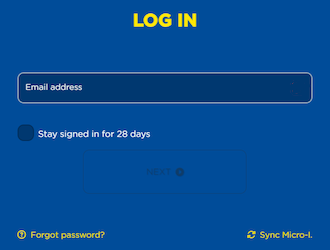
4. Log in to your Micro-I
- Visit the FECPAKG2 portal and log in when prompted.
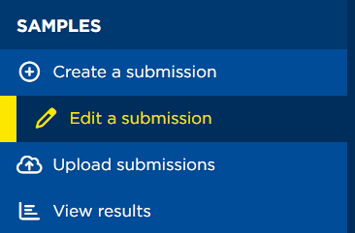
5. Return to your submission
- Select 'edit a submission'.
- Select the relevant Micro-I, if prompted.
- Select the sample you want to submit.
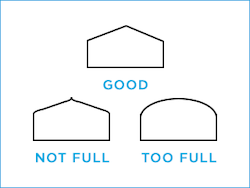
6. Check your sample
- Confirm that your fill is still good:
- if not and your sample has been resting in the sedimenter/saline for less than an hour, refill the cassette
- if not and your sample has been resting in the sedimenter/saline for more than an hour, prepare a new sample.
7. Insert the cassette
- When prompted:
- hold the cassette as still and level as possible
- gently insert the cassette into your Micro-I, leading with the pointed end
- ensure the cassette is pushed as far in until you feel resistance from the motors.
7. SOFTWARE IS CORRUPT
If the previous solution did not resolve the issue, it may be that the software has become corrupt. Techion Support will need to assist in resolving the issue.
Resolve the issue
1. Eject and remove the cassette
- Pull the cassette out gently from the back of your Micro-I.
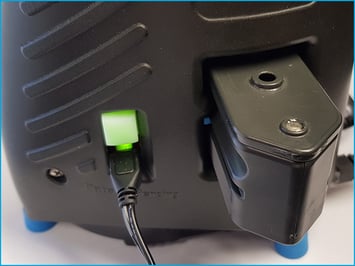
2. Prepare your Micro-I for Techion Support to connect to it remotely
- Turn off your Micro-I:
- if your Micro-I is on (i.e. the power button is green), press the power button for three seconds to turn it off:
- the power button's backlight will turn off after flashing red
- your Micro-I's internal light will turn off after flashing amber.
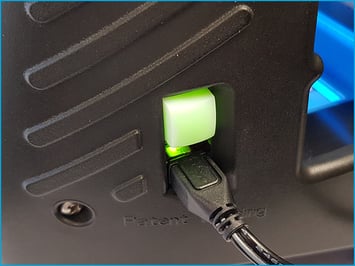
- Connect your Micro-I to your network:
- move your Micro-I near your Wi-Fi router or network access point
- plug one end of the Ethernet cable into your Micro-I and the other end into your Wi-Fi router or network access point.
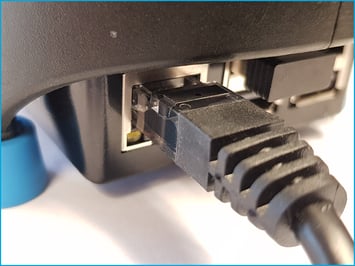
- Connect your Micro-I to external power:
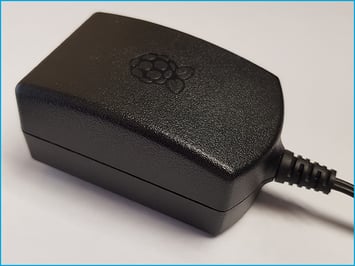
- plug your Micro-I's power adapter into a wall socket and the other end (Micro-USB) into your Micro-I
- turn on the power at the wall socket.
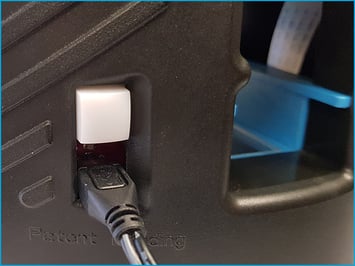
- Turn on your Micro-I:
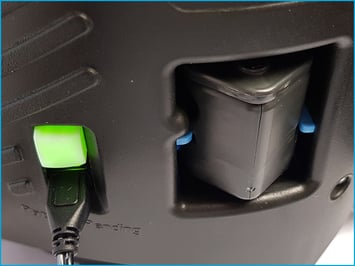
- Press the power button on your Micro-I for two seconds to turn it on:
- the power button's back-light will flash red and green before settling on green
- your Micro-I's internal light will glow yellow and flash white before settling on solid white when ready.
- Press the power button on your Micro-I for two seconds to turn it on:
- Insert a cassette:
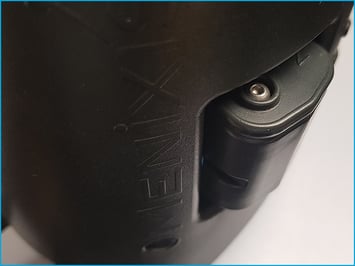
- Insert a full cassette partway through your Micro-I, gently pushing it in until the cassette starts protruding out the back of your Micro-I.
3. Contact Techion Support
- Please contact Techion Support via https://u.fecpakg2.com/support, and provide:
- the serial number of your Micro-I (i.e. MX-MIC-XXXX-X-XXXXXXXXXX)
- your first and last names
- your email address
- your telephone number
- mention that your sample images have been capturing for more than 12 minutes.

4. For Techion Support
8. CAMERA IS MISALIGNED
If the previous solution did not resolve the issue, it may be that the camera has become misaligned. Techion Support will need to assist in resolving the issue.
Resolve the issue
1. Eject and remove the cassette
- Pull the cassette out gently from the back of your Micro-I.
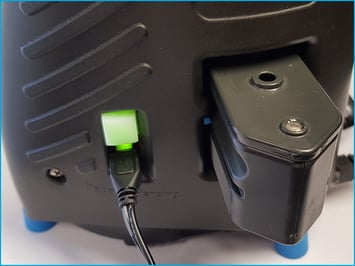
2. Prepare your Micro-I for Techion Support to connect to it remotely
- Turn off your Micro-I:
- if your Micro-I is on (i.e. the power button is green), press the power button for three seconds to turn it off:
- the power button's backlight will turn off after flashing red
- your Micro-I's internal light will turn off after flashing amber.
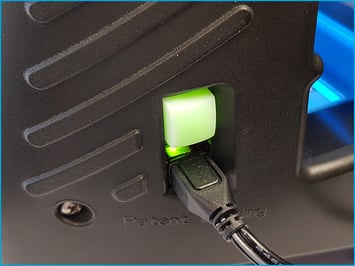
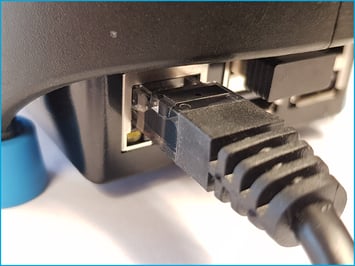
- Connect your Micro-I to your network:
- move your Micro-I near your Wi-Fi router or network access point
- plug one end of the Ethernet cable into your Micro-I and the other end into your Wi-Fi router or network access point.
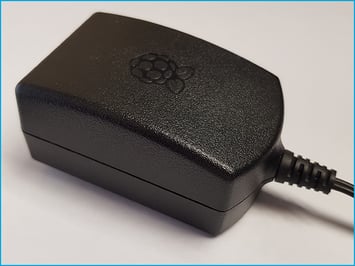
- Connect your Micro-I to external power:
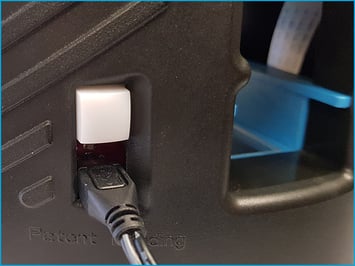
- plug your Micro-I's power adapter into a wall socket and the other end (Micro-USB) into your Micro-I
- turn on the power at the wall socket.
- Turn on your Micro-I:
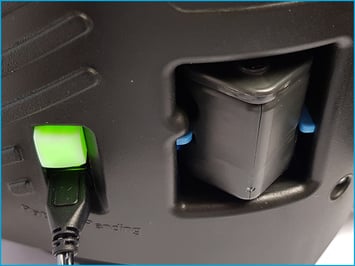
- Press the power button on your Micro-I for two seconds to turn it on:
- the power button's back-light will flash red and green before settling on green
- your Micro-I's internal light will glow yellow and flash white before settling on solid white when ready.
- Press the power button on your Micro-I for two seconds to turn it on:
- Insert a cassette:
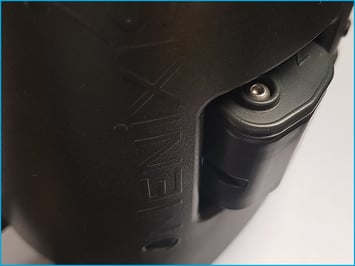
- Insert a full cassette partway through your Micro-I, gently pushing it in until the cassette starts protruding out the back of your Micro-I.
3. Contact Techion Support
- Please contact Techion Support via https://u.fecpakg2.com/support, and provide:
- the serial number of your Micro-I (i.e. MX-MIC-XXXX-X-XXXXXXXXXX)
- your first and last names
- your email address
- your telephone number
- mention that your sample images have been capturing for more than 12 minutes.

4. For Techion Support